
What each section does
In the order it processes, left to right on the device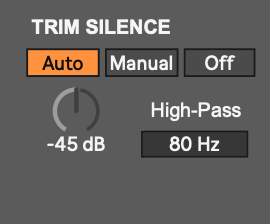
01 · High-pass, then trim silence
Cuts rumble and thumps (20–200 Hz, starts at 80). Then removes the silence between phrases: Auto, Manual or Off.
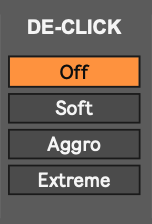
02 · De-click
Removes mouth clicks and lip smacks.
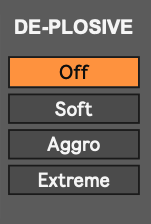
03 · De-plosive
Removes P and B pops without thinning the voice.
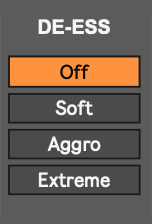
04 · De-ess
Tames harsh S sounds. Leaves T and K alone.
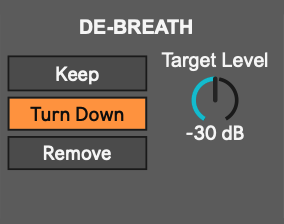
05 · De-breath
Finds breaths and keeps them, turns them down, or removes them. Turned-down breaths stay whole.
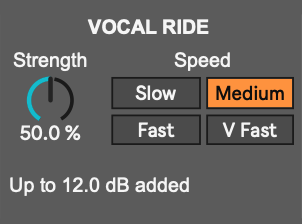
06 · Vocal ride
Evens out the volume, like riding a fader. Pick strength and speed. Follows loudness, so consonants don't jump.
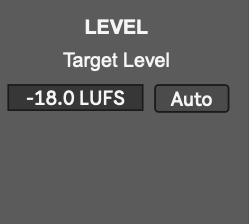
07 · Target level
Sets each track to a loudness you choose (LUFS), peaks under -1 dBFS. Auto keeps each take's own level.
The whole device
Ableton Live 12 with Max for Live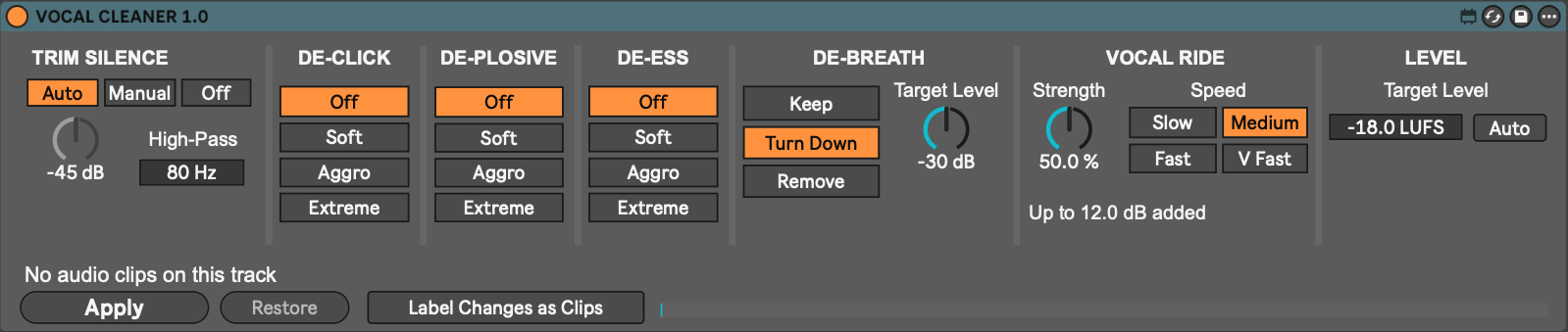
- Apply. Put the device on a vocal track, or on a group of vocal tracks, and press Apply. Every take is cleaned and replaced with new clips, right in the arrangement.
- Restore. Puts every original back with one click. This works even after you have moved or deleted the cleaned clips.
Built for real sessions
What happens to your takes and filesLabel changes as clips
Each change becomes its own small clip, named for what it fixed: "breath", "click", "ess" or "plosive". To undo one, drag the clip next to it over it and the untouched audio comes back.
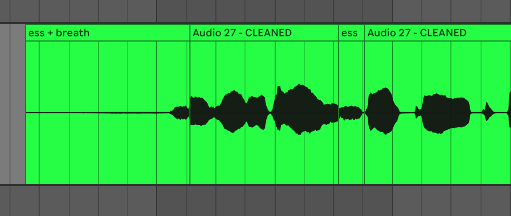
Originals kept
The untouched takes stay in a take lane called "Originals" under the track.
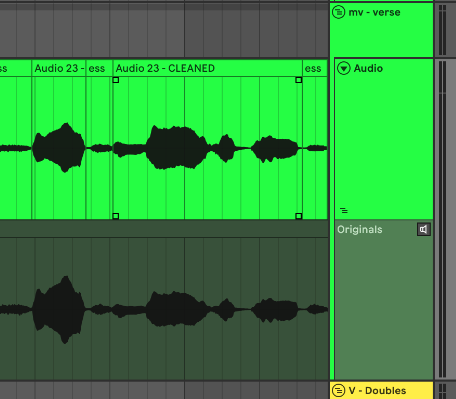
Groups
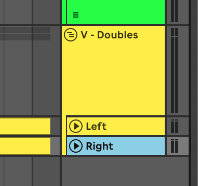
On a group of doubles or harmonies, it cleans every track inside and levels each one on its own.
- Handles. Cleaned files have 5 seconds of extra audio before and after each take, so you can drag clip edges back out.
- Warped takes. Warped clips are cleaned and put back with exactly the same timing.
- Files stay with the project. Cleaned audio is saved in your project's own Samples folder.
- Clear names. Cleaned clips end in "- CLEANED", so you can see what has been processed.
- Abort anytime. Stopping a job puts your originals back.
- Fast repeat runs. Change a setting and press Apply again, and it finishes in seconds.
- No load while idle. It does nothing during playback. All the work happens when you press Apply.
Requirements
macOS. Ableton Live 12 with Max for Live: Suite, or Standard plus Max for Live. Tested on Live 12.4. Not on Windows yet.Install
One .amxd file. Unzip it and drag Vocal Cleaner 1.0.amxd onto an audio track. No installer, nothing else to download.Price
Free. Download the zip